 Chrome extension
Emaki
Scroll, capture and edit full page screenshots of anything that scrolls: pages, chats, feeds and panels.
Emaki scrolls for you and stitches everything into one tall image. With Pro, mark it up in the editor before you share it.
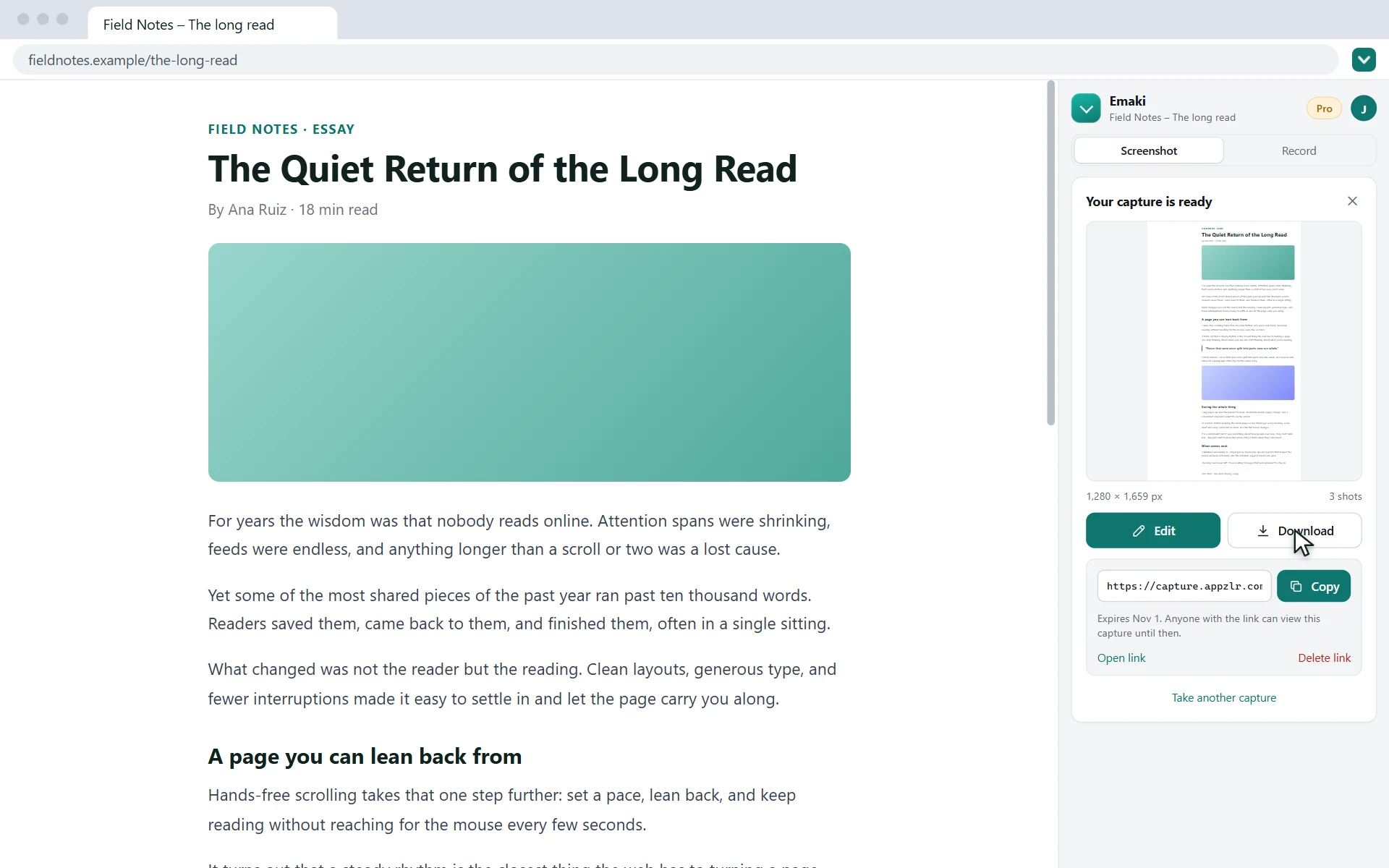
Choose Full page and Emaki scrolls the page for you, stitches every shot into one tall image and hands it back to download or share.
Screenshots and screen recordings, in one free extension
Everything happens in Chrome's side panel, next to the page you're on.
Free, no account
Full page and scrolling screenshots, autoscroll and the screen recorder are free, with no sign-up.
Gets what others miss
Chats, feeds and panels that scroll inside the page are captured from top to bottom, not just what's on screen.
Stays on your computer
Captures and recordings are made on your computer and aren't uploaded, except a capture you share as a link or an image you send for an AI edit.
Record with your camera
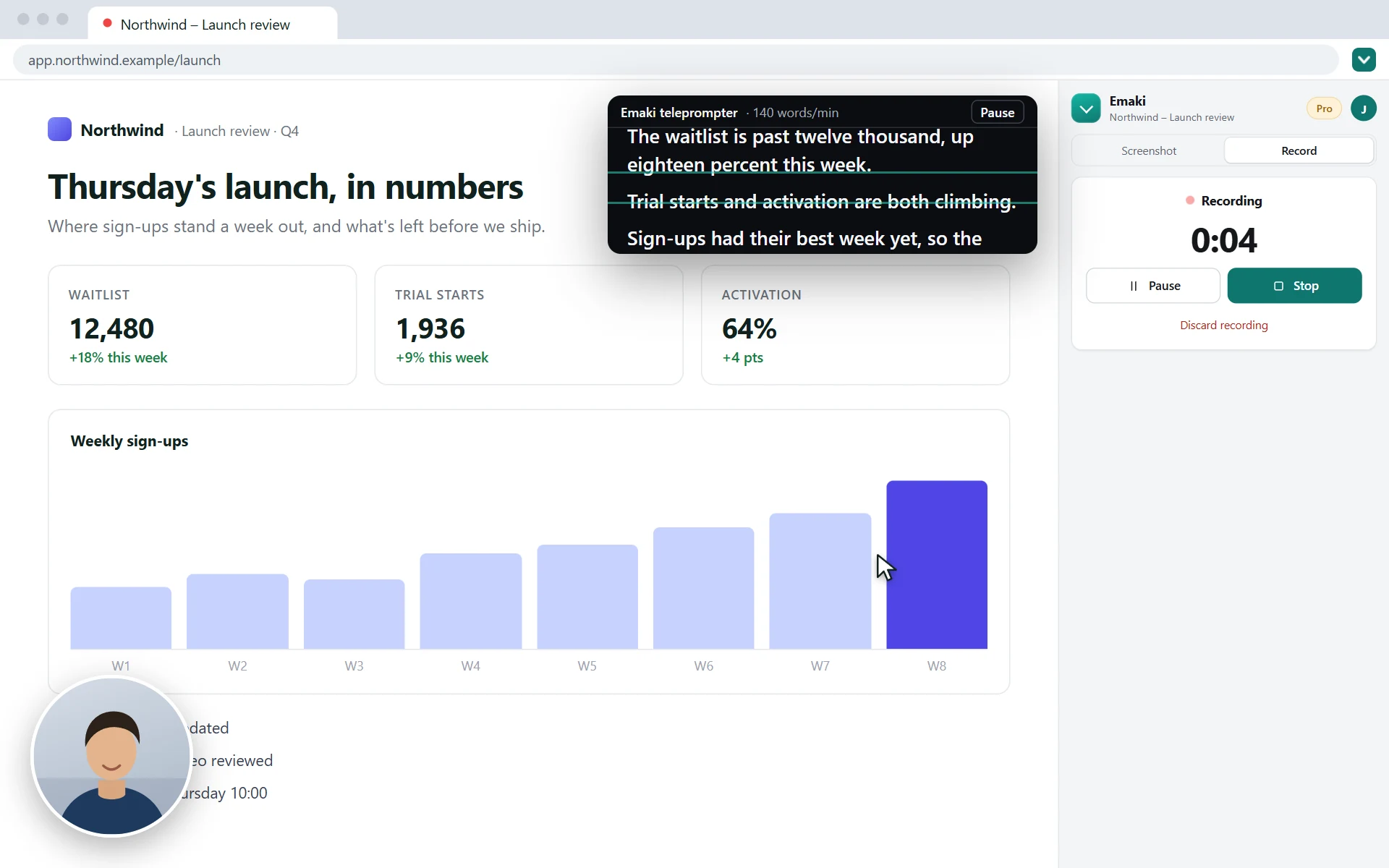
Record a tab, a window or your screen with your microphone, a camera bubble and a teleprompter.
Capture what other tools miss
Chats, feeds, inboxes and dashboards often scroll inside the page instead of the window, so ordinary full page screenshot tools only capture what's on screen.
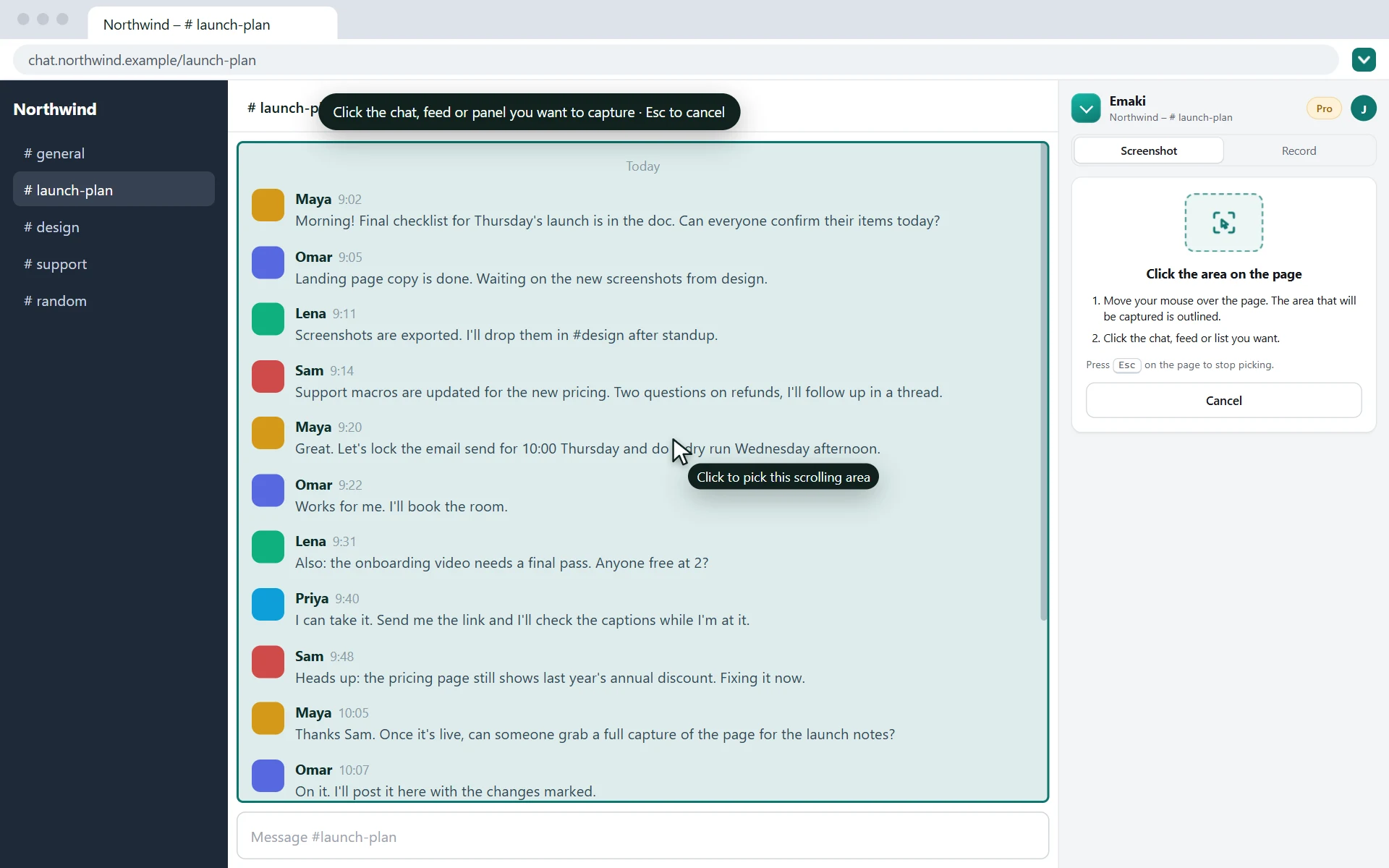
Choose Scrolling area, click the part that scrolls, and only that part is captured, from top to bottom.
- Long chats · WhatsApp Web, Slack
- Social feeds · timelines, comments
- Inboxes and dashboards · lists, panels
- Tables and side panels · anything that scrolls
Everything you need for full page screenshots
Full page screenshots
Whole pages or a single scrolling element, stitched into one image.
- Full page: scrolls the whole page and stitches every shot into one image
- Scrolling area: just a chat, feed or panel that scrolls inside the page
- Visible area: capture what's on screen right now
- Very long pages are saved as a few tall parts instead of hundreds of frames
- Adjust the pause between shots and the overlap between frames
Screenshot editorPRO
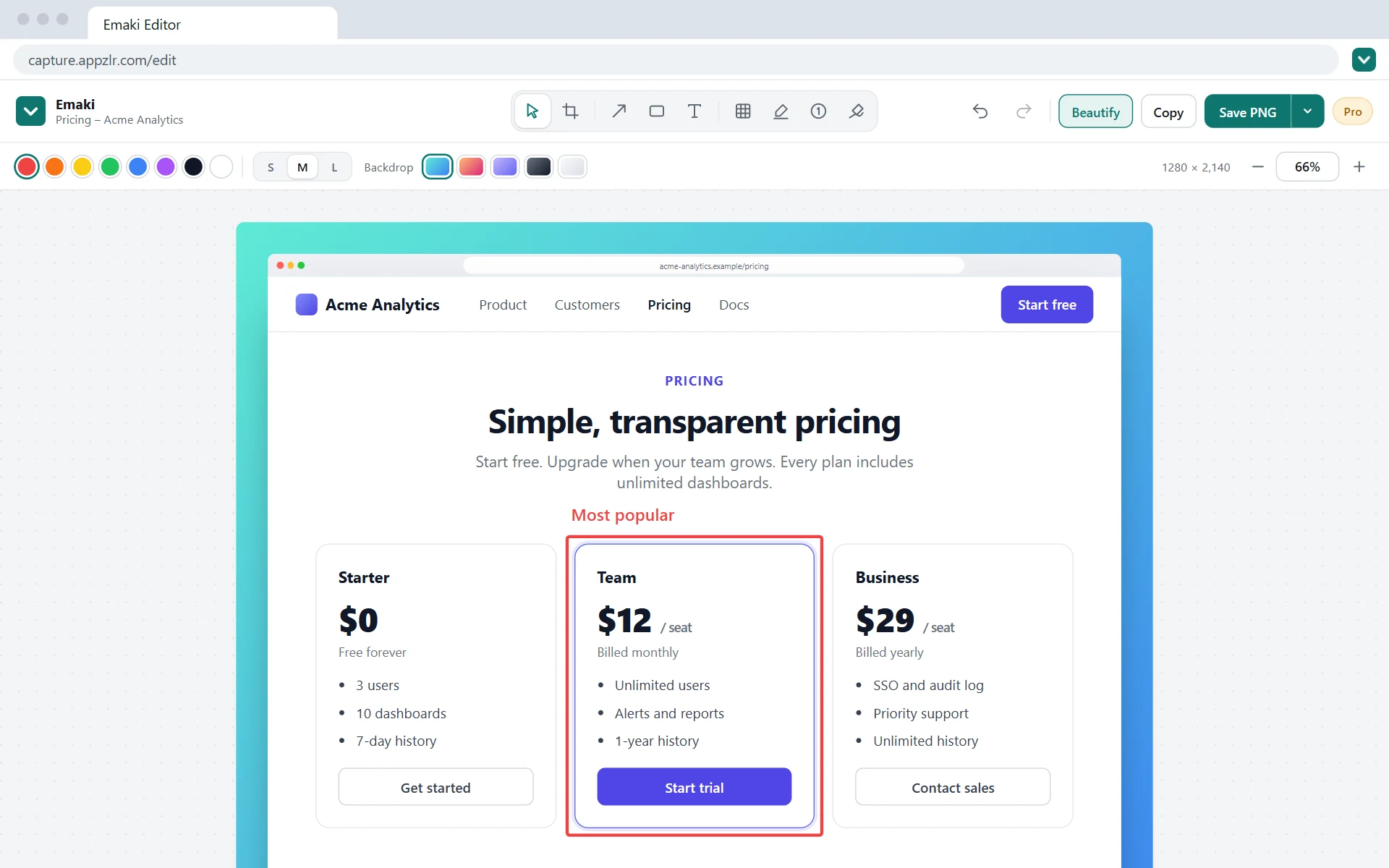
Every capture opens in the Emaki editor, free for saving PNG, JPG or PDF. With Pro, mark it up and share it. It edits any other image too.
- Crop, arrows, boxes and text
- Blur, highlighter, numbered steps and pen
- Copy, or export PNG, JPG, WebP and PDF
- AI edits with Pro + AI
Hands-free autoscroll
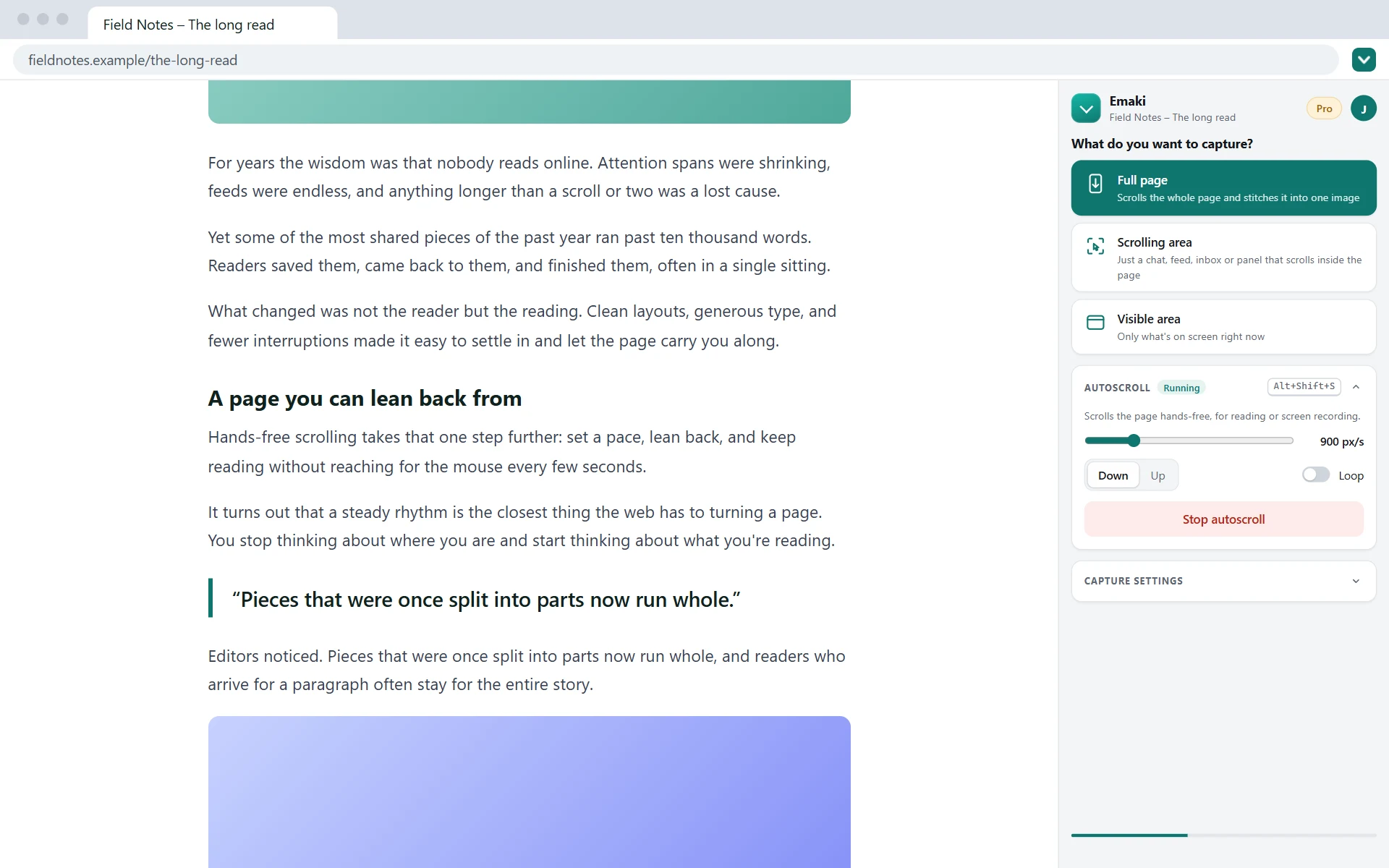
Read long pages and feeds without touching the mouse.
- Smooth scrolling from 40 to 4000 pixels per second
- Scroll up or down, with optional looping
- Works on the whole page or a scrolling area you pick
- Start or stop instantly with Alt+Shift+S
Your screenshots stay on your computer
Captures download to your Downloads folder, or open in the editor with Pro. Read the full privacy policy.
- Screenshots and page content are processed on your computer and never uploaded, except an image you send for an AI edit or a capture you share as a link
- No analytics, ads or tracking code, and your browsing is never recorded
- The only network requests are for your optional Appzlr account and your Pro status
- Payments are handled by Paddle at checkout on emaki.appzlr.com; the extension never sees your card
Emaki Pro
Capturing is free. Pro is for people who share screenshots for work: the editor, cleaner captures, redaction, PDFs with the page URL and time, and longer pages. Pro + AI also fixes screenshots for you: describe the change and it's done. Compare Free, Pro and Pro + AI.
Pro + AI Recommended
$20/month
or $200/year, 2 months free
Everything in Pro, plus AI edits. Select part of a screenshot, say what to change, and it's done.
- Remove a cookie banner or popup
- Fix a typo or reword a heading
- Swap an image or clear out clutter
- 100 AI uses a month, for edits and guide step text
7-day free trial for new subscribers. Cancel any time. Prices in USD.
Both plans: everything in Free, plus
- Screenshot editorCrop every capture and add arrows, boxes and text, or edit any image you open.
- No repeating sticky headersFixed bars and banners appear once instead of down the whole image.
- Blur and redactHide emails, names and numbers before you share.
- Highlighter, numbered steps and penMark what matters and number the steps.
- PDF with URL and timeThe page URL and capture time on every page, plus WebP export.
- BeautifyBrowser frame, padding and a backdrop for polished shots.
- Share linksSend a link to a capture or a recording that stops working after 1, 7 or 30 days.
- Auto-zoomTab recordings zoom in on every click by themselves, ready as an MP4 or a share link.
- Step-by-step guidesGuides from your tab recordings, with PDFs of any length, Markdown export, version history and share links that can stay up until you delete them.
- Longer capturesUp to 1000 shots per capture instead of 150.
How to take a full page screenshot
Open the side panel
Add Emaki from the Chrome Web Store, then click its icon in the toolbar to open the side panel.
Choose what to capture
Choose Full page for the whole page. For a chat, feed or panel, choose Scrolling area, click it and press Capture the whole area.
Download or edit
Emaki scrolls the page and stitches the shots together, then shows a preview. Download it as a PNG, or open it in the editor to save a JPG or PDF, or to mark it up with Pro.
- Chrome allows extensions to take about two screenshots per second, so very long pages take a little time.
- Chrome's own pages (
chrome://and the Web Store) can't be captured by any extension.
Record your screen, right here
Record a tab, a window or your whole screen with your camera in the corner, read from a teleprompter, and convert or trim the video, all in your browser. Free, and nothing is uploaded.
Questions and answers
Is Emaki free?
Capturing is free: full page, scrolling-area and visible-area screenshots and autoscroll, saved as PNG, JPG or PDF, with no account needed. Emaki Pro adds the screenshot editor (crop, arrows, boxes, text, blur and more), sticky header removal, the page URL and capture time on PDFs, and longer captures for $10/month or $100/year. Pro + AI adds 100 AI edits a month for $20/month or $200/year. First-time subscribers get a 7-day free trial of either plan.
Can it screenshot a whole chat, like WhatsApp Web or Slack?
Yes. Chats scroll inside the page rather than the window, so open the side panel, choose Scrolling area, click the message list and press Capture the whole area. It scrolls that list from top to bottom and stitches it into one image. Chat apps load older messages as you scroll up, so scroll up to the first message you want before you capture.
Can it remove sticky headers from a full page screenshot?
Yes, with Emaki Pro. Fixed and sticky bars, banners and buttons appear once instead of repeating down the whole image. On the free plan, a larger overlap between frames or picking the inner scrolling element usually avoids them.
Where do my screenshots go?
They stay on your computer. You download each capture as a PNG to your Downloads folder, or open it in Emaki's editor, which runs in your browser. Screenshots and page content are never uploaded, with two exceptions you choose: an AI edit on Pro + AI sends only the image or area you're editing to Google's Gemini API, and a Pro share link uploads that one capture, which is deleted when the link expires.
Can Emaki record my screen?
Yes, free. In the extension, choose Record to record a tab with its sound, your microphone and a camera bubble on the page, or Scroll recording for a smooth video of a page scrolling from top to bottom. To record a window or your whole screen with your camera in the corner, use the online recorder at emaki.appzlr.com/record, which also has a teleprompter. Recordings stay on your computer; trim them, save them as MP4 or a GIF, or with Pro share them as a link.
Can I edit a screenshot with AI?
Yes, with Emaki Pro + AI. In the editor, pick the AI tool and describe the change: remove a banner, fix a typo, blank out a chart, change a button's text. It edits the whole image, or drag over a part first to change only that area. Ctrl+Z undoes it. Pro + AI includes everything in Pro plus 100 AI edits a month, for $20/month or $200/year.
Can I save a full page screenshot as a PDF?
Yes, for free. Click Edit after a capture and choose PDF: Emaki splits the capture into pages. Emaki Pro also prints the page URL and capture time on every page, and exports WebP. PNG and JPG are free too.
How do I cancel Emaki Pro?
Open the Pro dialog in Emaki and click Manage subscription, or sign in to your account at emaki.appzlr.com/account/. You can cancel any time, and Pro stays on until the end of the period you paid for. Cancel during the 7-day free trial and you aren't charged at all.
Which browsers does Emaki work in?
Google Chrome 116 or later on Windows, macOS, Linux and ChromeOS. Other Chromium-based browsers that install from the Chrome Web Store may work but aren't officially supported. It doesn't run on Firefox, Safari or mobile browsers.
Capture the whole page, not just the screen
Add Emaki to Chrome in a few seconds. It's free, and you don't need an account.
Step-by-step guides
- Screenshot a whole WhatsApp Web chat
- Screenshot a long Slack conversation or thread
- Save a full page screenshot as a PDF
- Full page screenshots without repeating sticky headers
- Blur or redact private details in a screenshot
- Share a screenshot as a link that expires
- Annotate a screenshot with arrows, boxes, text and steps
- Edit a screenshot with AI
- Make a step-by-step guide from a screen recording
- Make an SOP in Chrome
- Make a how-to guide with screenshots
- Emaki Free vs Pro: what each plan includes
Need help?
Questions, bugs or feature ideas: email capture@appzlr.com and a person will reply. For billing, you can also manage your subscription from your account.